
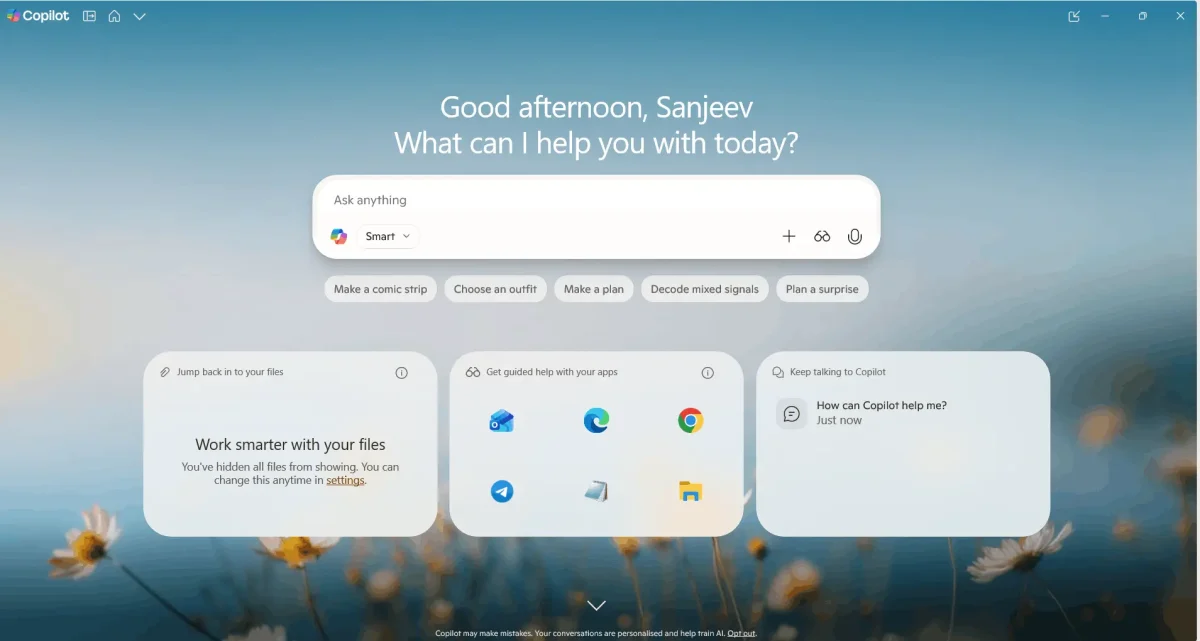
Copilot ai is Microsoft’s smart AI assistant. It lives inside the tools you already use every day — like Word, Excel, PowerPoint, Outlook, and even your web browser. You talk to it in plain English, and it helps you write, plan, create, summarize, and think. No special training needed. No coding. Just type what you need and let it do the work.
This guide is fully practical. We will skip the theory and go straight to real steps, real examples, and real use cases. By the end, you will know exactly how to use microsoft copilot in your daily routine — whether you are a student, a working professional, or a business owner.
What Is Copilot AI and Why Should You Care?
Microsoft copilot ai is an AI-powered assistant built by Microsoft using advanced language models — the same technology behind ChatGPT. It understands what you type, figures out what you need, and gives you a complete, useful response. This tool is not just a search engine. It is more like a smart colleague who never gets tired and always responds in seconds.
The reason microsoft ai copilot stands out from other AI tools is simple — it works inside apps you already use. You do not need to open a new tab or switch to a different platform. Whether you are writing a document in Word or reading emails in Outlook, copilot ai is right there, ready to help. That is what makes it a practical tool and not just a fancy experiment.
How to Access Copilot AI Free — Step by Step
You do not need to pay anything to start using copilot ai free. Here is exactly how to access it right now:
Option 1 — Use It in Your Web Browser
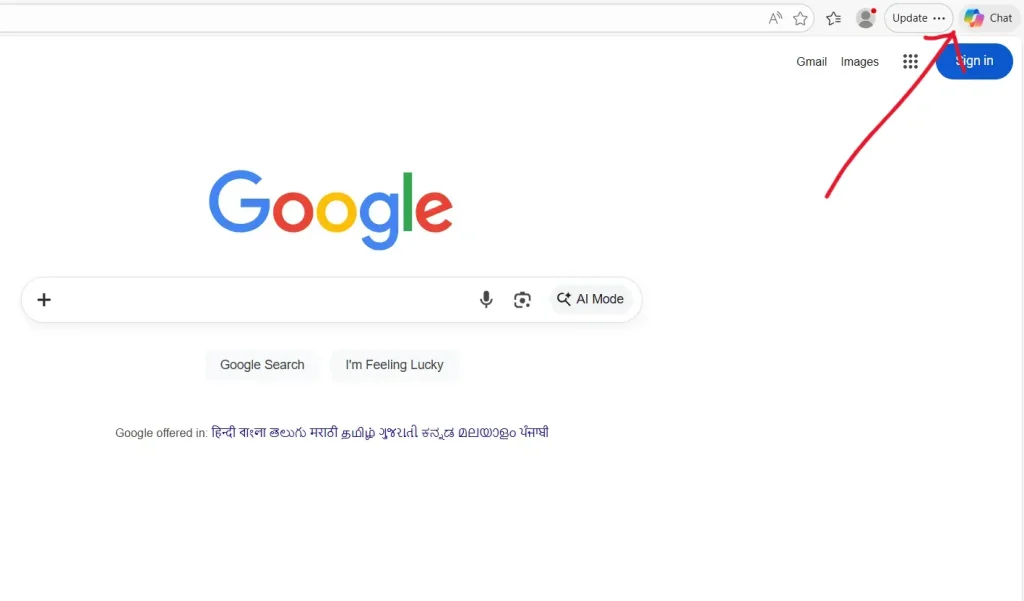
Open Microsoft Edge or go to bing.com. Sign in with any free Microsoft account (Outlook or Hotmail). Click the Copilot icon at the top right of the screen. That is it — you now have access to copilot online for free. You can ask it anything, get it to write text for you, or even use it to summarise a webpage you are reading.
Option 2 — Use It in Windows 11
If your PC runs Windows 11, look for the colourful Copilot icon on your taskbar near the Start button. Click it and a sidebar opens on the right side of your screen. You can ask it to open apps, change your settings, or help you write something — all without leaving what you are doing.
Option 3 — Use It on Your Phone
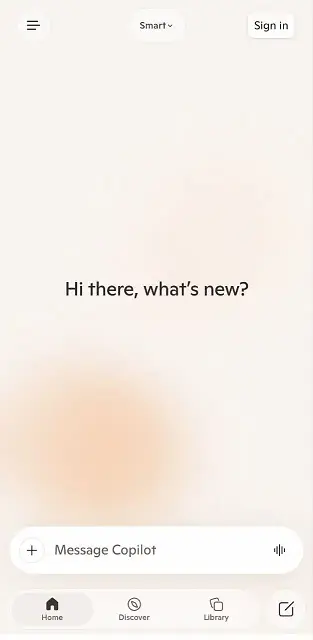
Download the Microsoft Copilot app from the Google Play Store or Apple App Store. Sign in with your Microsoft account. The mobile app gives you access to the same copilot chat experience on the go. You can even speak your questions out loud instead of typing them.
Practical Ways to Use Copilot AI
This is the most important part of this guide. Here are real, practical ways that microsoft copilot can help you in your daily work and studies right now.
1. Write Emails in Seconds With Copilot Chat
One of the most useful things copilot chat does is write emails for you. Open Outlook, click the Copilot button at the top, and type your instruction. For example: “Write a polite email to my manager asking for a one-day extension on my project deadline.” Copilot will write the full email in a professional tone. You just review it and hit send.
2. Create Full Presentations in PowerPoint
Open PowerPoint and click the Copilot button at the top. Type something like: “Create a 10-slide presentation on the benefits of solar energy for a school audience.” Microsoft copilot ai will generate a full presentation — with slide titles, bullet points, and even suggested images. What used to take two hours now takes two minutes.
3. Summarise Long Documents in Word
Have a 30-page report you need to understand quickly? Open it in Word, click Copilot, and type: “Summarise this document in 5 key points.” The ai copilot will read the entire document and give you a clean, short summary. This is a game-changer for students and professionals who deal with long reading material every day.
4. Analyse Data in Excel
Numbers confusing you? Open your spreadsheet in Excel and click Copilot. Type: “Which month had the highest sales and why?” or “Create a chart showing the trend of expenses over the last 6 months.” The tool will read your data, write the formula, and even create the chart for you — without you knowing any Excel functions at all.
5. Research and Write Content With Copilot Online
Go to bing.com and open copilot online. Type any question or research topic. Unlike a regular search that gives you links, this gives you a full written answer with source citations. It is great for writing essays, preparing for meetings, or learning something new quickly.
What to Type in Copilot AI — Ready-to-Use Prompts
The key to getting great results from copilot microsoft ai is knowing what to type. Here are some ready-to-use prompts for common situations:
| Situation | What to Type in Copilot AI |
|---|---|
| Write an email | Write a professional email to my boss asking for two days off next week |
| Summarise a document | Summarise this document in 5 bullet points in simple English |
| Make a presentation | Create a 10-slide presentation on climate change for school students |
| Explain something | I am a class 12 student. Explain how the stock market works simply |
| Fix my writing | Rewrite this paragraph in a more confident and professional tone |
| Get ideas | Give me 10 creative blog post ideas about home cooking for beginners |
Copy these prompts word for word the first time you try them. Once you see how well they work, you will start writing your own. The more specific and clear your instruction, the better the result you will get from copilot chat.
Copilot Studio — Build Your Own AI Assistant
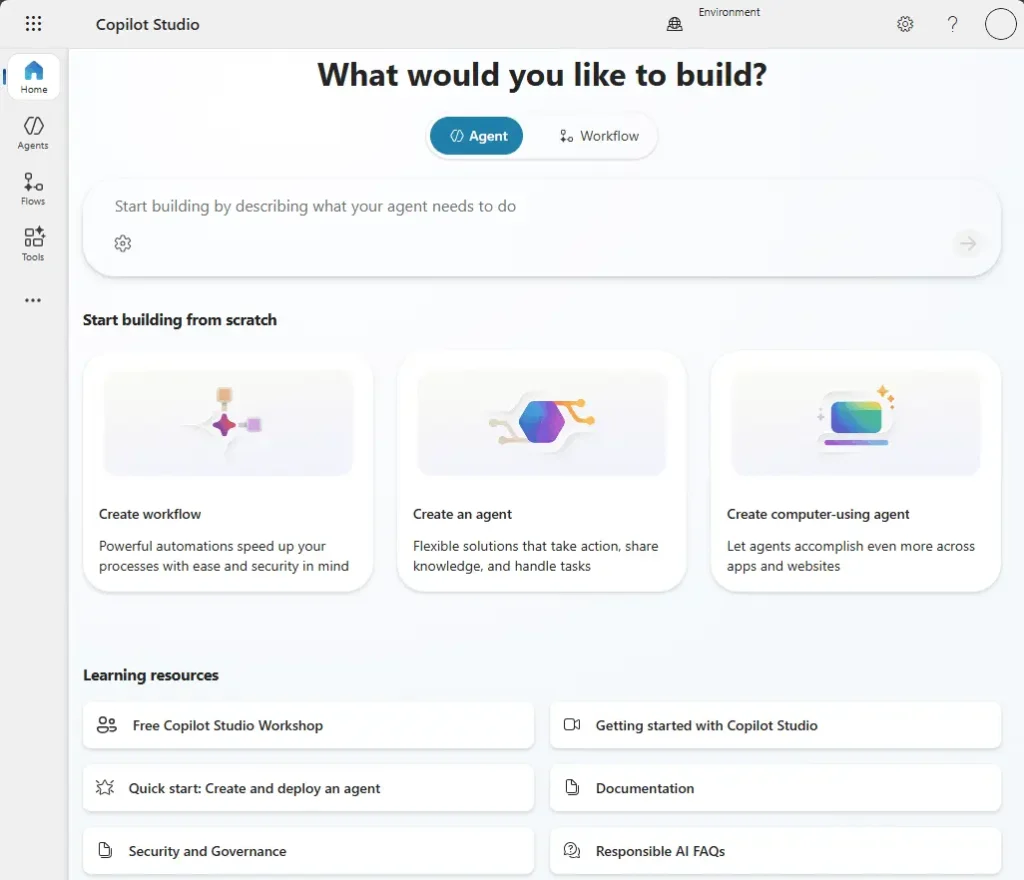
If you run a business or manage a team, copilot studio is a tool you must know about. It lets you build your own custom AI assistant — without writing any code. You can train it on your own company data, documents, and FAQs. Then your team or your customers can talk to it just like they would talk to a human agent.
For example, a school could build a bot that answers common parent questions about fees and schedules. A small shop could build one that helps customers find products. Copilot studio makes this possible for anyone, not just big tech companies. You access it through the Microsoft Business Portal with a Microsoft 365 account.
Tips to Get Better Results From Copilot AI
Here are simple habits that will make your experience with microsoft ai much better from day one:
- Always be specific — the more detail you give, the better the output
- Tell Copilot who you are — for example, ‘I am a class 12 student’ helps it adjust the language
- Ask it to try again — if the answer is not right, type ‘Make it shorter’ or ‘Use simpler words’
- Use it to check your writing — paste your text and ask ‘Fix the grammar and improve the flow’
- Ask follow-up questions — copilot chat remembers your conversation, so you can build on previous answers
- Try the free version first — copilot ai free gives you enough to learn and decide if the paid plan is worth it
Quick Summary — All Copilot AI Features at a Glance
| Feature | What It Does | Where to Find It |
|---|---|---|
| Copilot Chat | Answer questions, write text | Bing, Edge, Windows taskbar |
| Copilot Online | Web-based AI help | microsoft.com / bing.com |
| Copilot for 365 | Create docs, slides, emails | Word, Excel, PowerPoint, Outlook |
| Copilot Studio | Build your own custom AI bot | Microsoft Business Portal |
| Copilot AI Free | Basic features at zero cost | Edge browser or Bing.com |
Conclusion — Start Using Copilot AI Today
Copilot ai is not just a tool for big companies or tech experts. It is designed for everyone — students doing homework, professionals writing reports, teachers making lesson plans, and small business owners running their daily operations. The best part is that you can start using it right now for free.
Start small. Open Edge, go to bing.com, and try asking microsoft copilot one question today. Ask it to write an email, explain a concept, or give you ideas for a project. Once you see how much time it saves, you will naturally start using it more. The skills you build with copilot online today will be some of the most valuable skills you carry into the future of work.
FAQs — Copilot AI
Q1: Is Copilot AI free to use?
Yes — the basic version of copilot ai free is available through Microsoft Edge and bing.com with just a free Microsoft account.
Q2: Is Copilot AI different from ChatGPT?
Both use similar technology, but microsoft copilot is built into Microsoft apps like Word, Excel, and Outlook, making it more practical for daily office and school work.
Q3: Can I use Copilot AI on my phone?
Yes — download the free Microsoft Copilot app from the Google Play Store or Apple App Store and sign in with your Microsoft account.
Q4: Is my data safe with Microsoft Copilot AI?
Yes — microsoft copilot ai uses enterprise-grade security, and your private data stays within your account. Always avoid sharing sensitive personal information in any AI tool.
Q5: What is Copilot Studio used for?
Copilot studio lets businesses build their own custom AI bots trained on their own data — no coding skills required.