Batch:

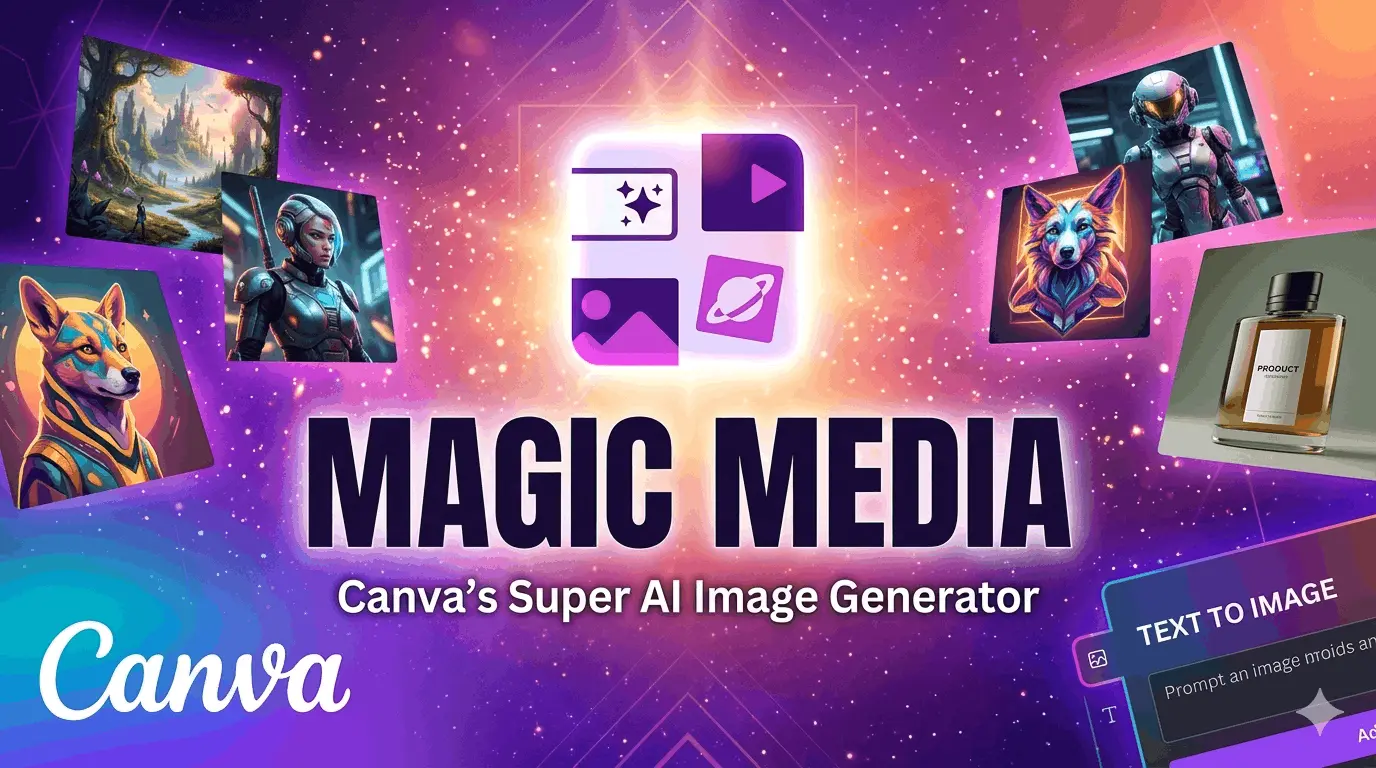
Have you ever wanted to make a beautiful picture but had no idea how to draw? Now, with the Canva AI image generator, you can create stunning visuals just by typing a few simple words. Even beginners can create professional-looking designs using this simple AI-powered tools.
This powerful tool is called Magic Media. It is part of Canva’s Magic Studio — and it is one of the most popular free AI image generators used by students, bloggers, teachers, and small business owners all over the world. In this guide, you will learn everything about the Canva AI image generator — what it is, how it works, and how to get the best results from it.
What Is the Canva AI Image Generator (Magic Media)?
The Canva AI image generator is a built-in tool called Magic Media that uses artificial intelligence to turn your written words into real pictures. You type a description of what you want to see, and this AI image creator creates it in just a few seconds.
Magic Media is powered by Stable Diffusion — one of the most advanced text to image AI engines in the world. This means the Canva AI image generator can produce high-quality, detailed AI generated images from even simple text prompts.
The Canva AI image generator creates three main types of content:
| Images Detailed, realistic or artistic pictures — like photos or painted illustrations. | Graphics Icons, clip art, and vector visuals across 14 unique graphic styles. | Videos Short animated clips from text prompts. Currently in Beta. |
What Can You Make With the Canva AI Image Generator?
The Canva AI image generator is extremely flexible. Here are some real examples of how people use this AI image creator every day:
Example 1 — YouTube Thumbnail
A YouTuber types: “Bold thumbnail for a video about growing on Instagram in 2026 — energetic, bright colors, pop art style.” The Canva AI image generator shows 4 different AI pictures in seconds. The creator picks the best one and adds their channel name on top. Done in under 2 minutes using the built-in thumbnail generator.
Example 2 — Instagram Post for a Small Bakery
A bakery owner types: “Cozy kitchen table with fresh bread, warm lighting, soft pastel colors.” The AI photo generator free creates a beautiful, ready-to-use image in seconds — no photographer, no expensive shoot, no stock photo subscription needed.
Example 3 — Blog Header Image
A travel blogger types: “Modern home office with a mountain view through a large window, minimalist style.” This type of very specific image is almost impossible to find on stock photo websites. The Canva AI image generator creates it instantly — exactly as described.
Example 4 — Passport Photo and Collages
Canva also has a passport size photo generator free feature and a photo collage generator. Use these alongside the Canva AI image generator to create professional ID photos, memory books, and image collage generator designs — all in one place, all for free.
| More real use cases for Canva AI image generator: → Social media posts for Instagram, Facebook, Pinterest, and Twitter → Blog headers and website banner images → Book covers, event posters, and printed flyers → Product mockups and marketing materials → Artificial intelligence pictures for presentations and e-books → Passport size photo generator free for official ID documents → Photo collage generator designs for gifts and memory albums |
Is the Canva AI Image Generator Really Free?
Yes — the Canva AI image generator free version is open to everyone with a Canva account. When you sign up, you get monthly credits to use the free image generator AI tool right away. Here is how the plans compare:
| Plan | Cost | AI Credits | Best For |
| Canva Free | ₹0 / month | Limited per month | Students and beginners |
| Canva Pro | Paid plan | High monthly credits | Bloggers and creators |
| Canva Teams | Paid per user | Team shared credits | Agencies and businesses |
How to Use Canva AI Image Generator — Step by Step
Using the Canva AI image generator is very easy. Just follow these 8 steps:
- Open Canva. Go to canva.com and log in. Signing up is free and takes less than 1 minute.
- Start a new design. Click “Create a design” and choose a size — Instagram Post, YouTube Thumbnail, or any custom size.
- Click on Apps. In the left sidebar, click “Apps.” Search for “Text to Image” and open it. You are now inside the Canva AI image generator (Magic Media).
- Write your prompt. Describe what you want to create AI images of. Be as detailed as possible — colors, style, mood, setting, lighting.
- Choose a style. Pick an artistic style for your AI art generator result — Photo, Watercolor, Neon, Dreamy, Anime, 3D, Sketch, and more.
- Select an aspect ratio. Choose square (1:1), landscape (16:9), or portrait (9:16) depending on where you will use the image.
- Click Generate. The image generator AI creates 4 different AI generated pics in seconds. Browse all four options before choosing.
- Add it to your design. Click any image. It drops right onto your Canva canvas. Resize, move, and edit it freely with your text, icons, and brand colors.
| Prompt Tip: Instead of typing “a cat,” try: “a fluffy orange cat sitting on a rainy window sill, warm soft lighting, watercolor style.” Detailed prompts always give better AI generated images from the Canva AI image generator. |
Image Styles You Can Choose
One of the best things about the Canva AI image generator is that you can pick different artistic styles. This gives you full control over how your AI pictures look.
| Photo Realistic, photographic look. Great for social media and professional content. | Watercolor Soft, hand-painted feel. Perfect for invitations, art prints, and creative blogs. |
| Neon / Dreamy Vibrant, glowing fantasy look. Great for gaming, music, and night themes. | 3D Render Clean modern 3D style. Ideal for tech products and presentations. |
| Anime Japanese animation style. Popular for characters and creative projects. | Sketch Hand-drawn pencil style. Great for educational content and minimal designs. |
Canva Magic Media vs Other AI Image Tools
There are many AI picture generators available today. Here is how the Canva AI image generator compares to the top tools:
| Tool | Free Plan | Built-in Editor | Best For |
| Canva Magic Media | Yes | Yes (Full Design) | Beginners and all-in-one creators |
| Midjourney | No | No (Discord only) | Advanced artistic images |
| DALL-E (ChatGPT) | Limited | Limited | Quick image generation |
| Adobe Firefly | Limited | Yes (Adobe apps) | Professional designers |
| Microsoft Designer | Yes | Yes | Office and presentation users |
The biggest advantage of the Canva AI image generator is that it is an all-in-one platform. Other text to image generators only give you an image file. With Canva, you immediately add text, logos, icons, and brand colors on top of your AI generated images — without ever leaving the app.
Canva is also the only tool that combines a free AI image generator, a thumbnail generator, a photo collage generator— all in one login, all in one place.
Tips to Get the Best AI Images
Getting great AI pictures from the Canva AI image generator is a skill you can learn fast. Use these tips every time:
| Be very specific Add colors, mood, lighting, and setting. “Red vintage car, dusty desert road, golden hour” beats just “car”. | Use style keywords Words like “cinematic,” “pastel,” “minimal,” or “vintage” help the AI photo maker nail the look you want. |
| Try all 4 results The Canva AI image generator always gives 4 options. Always compare all of them before choosing. | Regenerate freely Not happy? Click Generate again for 4 new creating AI images results. Repeat until it’s perfect. |
| Add negative hints Tell the AI photo creator what to avoid. Add “no people, no text” to keep images clean and focused. | Mix with templates Combine your AI images creator results with Canva’s icons, fonts, and templates for unique designs. |
| Pro Tip: Treat the Canva AI image generator like you are giving instructions to a real artist. Describe the image as if the artist cannot see it. The more clear you are, the better your artificial intelligence pictures will turn out. |
Frequently Asked Questions
Q.1 What is Magic Media in Canva?
Magic Media is the official name of the Canva AI image generator. It is powered by Stable Diffusion and lets you generate AI images, graphics, and short videos from a simple text prompt — all inside Canva.
Q.2 Is the Canva AI image generator completely free?
Yes. The AI image generator free plan gives you monthly credits at no cost. Canva Pro gives more credits and premium styles.
Q.3 Can I use AI images for my business?
Generated AI images from the Canva AI image generator can be used for commercial projects — including marketing, print, and products — as per Canva’s terms of use.
Q.4 How is Canva different from Midjourney?
Midjourney has no free plan and works only on Discord. The Canva AI image generator is free, beginner-friendly, and built inside a full design editor — making it a far better choice for everyday creators.
Q.5 Can I make a passport size photo with Canva?
Yes. Canva includes a passport size photo generator free feature for creating standard ID photos directly inside the platform.
Q.6 What is the best AI image generator for beginners?
The Canva AI image generator (Magic Media) is the best AI image generator for beginners — free to use, simple to learn, and connected to a full design editor.
Final Thoughts
The Canva AI image generator (Magic Media) is one of the easiest and most complete AI image creator tools available today. It is powered by Stable Diffusion, completely free to start, and works inside a full design platform. Whether you need AI generated images for social media, a thumbnail generator design, a passport size photo generator free result, or a photo collage generator project — the Canva AI image generator has it all in one place. For more AI Tools, Check our full guide here: Best AI Tools for Digital Marketing.